
What Is WooCommerce and How to Set It Up?
WooCommerce is an open-source WordPress plugin enabling e-commerce. Setup requires hosting, payment gateways, and shipping configuration to process online orders securely.

WooCommerce is an open-source WordPress plugin enabling e-commerce. Setup requires hosting, payment gateways, and shipping configuration to process online orders securely. Deciding to build an enterprise-grade digital storefront on WooCommerce demands a clear understanding of its foundational architecture, total cost of ownership (TCO), and technical deployment steps. This guide provides business owners and technical decision-makers with a comprehensive, operational manual to deploy, configure, and secure a high-performing WooCommerce store. From initial database considerations to advanced payment gateway configurations and security protocols, this walkthrough addresses the real-world operational challenges of launching a self-hosted digital retail store.
Understanding WooCommerce: An Executive Overview

The Relationship Between WordPress and WooCommerce
At its core, WooCommerce is not a standalone e-commerce platform. It is a highly specialized, modular software package designed to extend the WordPress content management system (CMS). WordPress provides the fundamental content layers—such as user authentication, database access controls, page templates, and media management—while WooCommerce injects e-commerce-specific functionality. This includes custom post types for catalog items, transactional database tables, cart mechanics, checkout workflows, and order processing capabilities.
In legacy environments, WooCommerce stored transactional order records within the standard WordPress @@CODE0@@ and @@CODE1@@ database tables. While this unified architecture made setup simple, it frequently resulted in database bloat and performance degradation under high transaction volumes. Every order attribute required a separate row in the metadata table, forcing the database engine to perform expensive JOIN queries during simple order retrievals.
To resolve this limitation, modern WooCommerce installations utilize High-Performance Order Storage (HPOS). HPOS introduces dedicated custom database tables specifically optimized for transactional e-commerce data (such as @@CODE0@@ and @@CODE1@@). This architectural shift separates content queries from transactional processing, ensuring that high-volume order ingestion does not lock database tables or slow down page load speeds for browsing customers.
Core Capabilities and Business Advantages
WooCommerce stands out in the enterprise landscape due to its open-source, self-hosted nature. Unlike proprietary Software-as-a-Service (SaaS) platforms, it grants organizations absolute control over their database schemas, server configurations, and checkout flows. This direct ownership of data is critical for compliance with global regulations such as the General Data Protection Regulation (GDPR) and the California Consumer Privacy Act (CCPA).
The platform operates on an API-first architecture, exposing a robust REST API that allows seamless synchronization with external Enterprise Resource Planning (ERP) systems, Customer Relationship Management (CRM) tools, and specialized Product Information Management (PIM) suites. This extensibility allows organizations to treat WooCommerce as the core transaction engine of a much larger, headless, or omnichannel digital retail ecosystem.
Furthermore, because there are no licensing fees tied to sales volume or transaction counts, merchants can scale their operations without experiencing the margin compression typical of SaaS platforms that charge variable platform transaction fees. The customizability of the checkout flow allows developers to implement highly optimized, single-step payment experiences, custom subscription models, and dynamic pricing rules directly tailored to business-to-business (B2B) or business-to-consumer (B2C) operations.
Evaluating the Total Cost of Ownership (TCO)
While the WooCommerce plugin itself is distributed under the GNU General Public License (GPL) and is free to download, building and maintaining a commercially viable online store incurs concrete, recurring operational costs. A realistic assessment of the Total Cost of Ownership (TCO) is essential to avoid project bottlenecks and ensure long-term profitability.
The primary cost drivers of a professional WooCommerce store include:
Enterprise-grade hosting: Essential to handle sudden traffic spikes and secure user data.
Premium functional extensions: Necessary for advanced subscription billing, dynamic shipping APIs, and robust product search.
Professional design and custom development: Costs associated with building customized user interfaces or complex backend integrations.
Maintenance, security, and backup infrastructure: Critical ongoing expenses required to maintain system stability, execute daily updates, and secure transactional databases.
A reliable cost breakdown helps business owners anticipate these expenses:
Domain Registration: $10 - $50 annually depending on top-level domain (TLD) selection.
Premium Managed WordPress Hosting: $35 - $250+ monthly, based on processing cores, RAM allocations, and traffic limits.
Payment Processing Fees: Typically 1.4% to 2.9% + $0.30 per transaction, determined by the chosen secure payment gateway and merchant account parameters.
Commercial Extensions (Subscriptions, Bookings, ERP sync): $100 - $600 annually per extension.
Security & Backup Services: $15 - $100 monthly for real-time remote backups, Web Application Firewalls (WAF), and automated vulnerability scanning.
Understanding these variables ensures that financial resources are allocated correctly, prioritizing technical performance and security over superficial visual enhancements.
Technical Prerequisites for a Secure Installation

Selecting Enterprise-Grade Web Hosting
WooCommerce operations are highly resource-intensive. Unlike standard content sites or blogs, an e-commerce platform executes a significant volume of dynamic, non-cacheable requests. Activities such as adding items to a cart, calculating shipping costs in real-time, executing checkout queries, and interacting with payment gateway APIs bypass standard page caching mechanisms entirely. Consequently, selecting a high-performance web hosting provider is one of the most critical infrastructure decisions a merchant will make.
Avoid low-cost, shared hosting packages. Shared environments host hundreds of websites on a single physical machine, leading to resource contention where another site's traffic spike can exhaust the server's CPU or RAM, causing your store to drop orders. Instead, opt for Cloud Hosting, Virtual Private Servers (VPS) with dedicated resource allocations, or highly optimized Managed WordPress Hosting environments.
The hosting architecture must meet the following technical baseline specifications to ensure stable operations under heavy transactional loads:
PHP Version: PHP 8.2 or PHP 8.3 must be active, as newer versions offer substantial memory management improvements and execution speed enhancements.
Database Engine: MySQL version 8.0+ or MariaDB version 10.6+ is required for optimal performance of HPOS tables.
PHP Memory Limit: A minimum of 256MB must be allocated (@@CODE0@@ in @@CODE1@@), though 512MB is highly recommended for sites running complex inventory systems or multiple third-party integrations.
OPcache and Object Caching: OPcache must be enabled on the server to cache precompiled script bytecode. Additionally, Redis or Memcached must be configured to handle persistent object caching, preventing the database from executing redundant queries on every page load.
Domain Registration and Brand Identity
Your domain name is the digital address of your business and acts as the root of your technical brand identity. When choosing a domain registrar, prioritize providers that offer robust security controls, including multi-factor authentication (MFA), registrar locking to prevent unauthorized transfers, and built-in, free WHOIS privacy protection to secure corporate registration data.
From a technical perspective, your domain configuration must be managed through high-performance, redundant DNS servers. Utilizing premium DNS management platforms, such as Cloudflare or Amazon Route 53, ensures rapid DNS resolution times globally. Slow DNS lookup times introduce latency into the initial connection phase, increasing overall page-load speeds and negatively impacting the shopping experience.
When configuring your domain records:
Map your root domain (@@CODE0@@) and subdomains (@@CODE1@@ or @@CODE2@@) to your origin server IP using @@CODE3@@ or
AAAArecords.Utilize
CNAMErecords to point asset subdomains to Content Delivery Networks (CDNs) if needed.Establish proper SPF (Sender Policy Framework), DKIM (DomainKeys Identified Mail), and DMARC (Domain-based Message Authentication, Reporting, and Conformance) TXT records. These records authorize your mail server or transactional email provider (such as Mailgun or SendGrid) to send emails on behalf of your domain, ensuring that critical transactional notifications—such as order receipts and password resets—do not land in customer spam folders.
Implementing SSL Certification and PCI Compliance
Any website processing financial transactions or gathering personal customer data must secure its communications using Transport Layer Security (TLS/SSL). An SSL certification encrypts the data stream between the user's web browser and the e-commerce server, protecting sensitive information—such as credentials and credit card details—from interception by malicious actors.
Most enterprise hosting providers offer automated integration with Let's Encrypt, a free, automated, and open certificate authority. For standard operations, a Let's Encrypt Domain Validation (DV) certificate is sufficient. However, for organizations seeking high-security verification, Wildcard or Organization Validation (OV) certificates from commercial authorities can be implemented to verify the legal identity of the operating business.
Beyond basic encryption, any merchant handling credit card data must adhere to the Payment Card Industry Data Security Standard (PCI-DSS). PCI compliance is a strict set of technical and operational requirements designed to prevent credit card fraud and data breaches.
Because WooCommerce is a self-hosted platform, the burden of PCI compliance falls largely on the merchant. You can significantly reduce your PCI compliance scope (typically from Self-Assessment Questionnaire SAQ-D down to SAQ-A or SAQ-A-EP) by adopting two key architectural practices:
Tokenization: Never store raw credit card numbers or card verification codes (CVVs) within your local WordPress database. Instead, integrate modern secure payment gateways that utilize iframe overlays (such as Stripe Elements) or off-site redirection. These methods process payment credentials directly on the payment gateway’s secure servers, returning only a safe transaction token to your WooCommerce database.
Secure Environment Defaults: Ensure your server is configured to support only TLS 1.3, disable deprecated protocols like SSLv3 and TLS 1.0/1.1, configure a robust Web Application Firewall (WAF) to block malicious traffic, and run automated quarterly vulnerability scans on your hosting environment.
How to Set Up WooCommerce: Step-by-Step Configuration
Step 1: Installing and Activating the WooCommerce Plugin
Once your WordPress core environment is fully configured, secured, and connected to its database, you can proceed with the installation of the core WooCommerce plugin. This process can be executed through the WordPress administrative dashboard or, for technical administrators managing deployment pipelines, via the WordPress Command Line Interface (WP-CLI).
To install the plugin through the admin dashboard:
Navigate to Plugins > Add New Plugin in the left-hand sidebar.
In the top-right search field, type
WooCommerce.Locate the official plugin developed by Automattic.
Click Install Now, wait for the files to download to your server, and then click Activate.
For technical administrators using WP-CLI, execute the following commands in your server terminal within the WordPress root directory:
# Download and install the latest WooCommerce plugin
wp plugin install woocommerce --activate

# Verify the plugin is active and check the system status
wp plugin list --status=active
Using WP-CLI bypasses browser timeout limits, which is highly beneficial if your server is configured with strict execution time limits. Upon activation, the software modifies your database schema by creating its default custom tables and establishing the primary virtual pages required for e-commerce functionality, including the @@CODE0@@, @@CODE1@@, @@CODE2@@, and @@CODE3@@ page structures.
Step 2: Navigating the Onboarding Setup Wizard
Upon activation, WooCommerce will automatically redirect you to its initial configuration wizard. This interactive setup flow gathers essential demographic, geographic, and operational metadata about your digital enterprise to establish baseline store behaviors.
The setup wizard guides you through several key configuration points:
Store Location: Define your physical business address, country, and state. This information forms the baseline geographic point used by tax automation tools and shipping carrier calculation APIs.
Industry and Product Types: Select the market sectors you operate in (e.g., fashion, electronics, health) and define whether your catalog consists of physical products, digital downloads, subscription services, memberships, or physical bookings.
Business Details: Declare how many products you plan to display and whether you are currently selling on other platforms. This helps the setup engine recommend optional third-party integrations tailored to your scale.
Theme Selection: Choose whether to proceed with your currently active WordPress theme, install the default WooCommerce "Storefront" theme, or select an enterprise-grade commercial starter theme optimized for rapid performance.
While the onboarding wizard is highly intuitive, any setting configured during this flow can be modified later within the core administrative interface under WooCommerce > Settings.
Step 3: Configuring Secure Payment Gateways
Securing a reliable payment processing framework is paramount to processing orders safely and maintaining consistent cash flow. WooCommerce supports an expansive array of secure payment gateways. To prevent cart abandonment, it is standard practice to offer a hybrid payment gateway structure: one principal merchant account solution that handles direct credit card inputs, alongside an express wallet solution (such as Apple Pay, Google Pay, or PayPal Express Checkout).
Stripe and PayPal are the two most commonly implemented payment gateways due to their global reach, robust development sandboxes, and reliable API structures.
To configure a payment gateway:
Navigate to WooCommerce > Settings > Payments.
Toggle the switch to activate your desired payment processor.
Click Manage (or Set Up) adjacent to the payment gateway to enter its configuration panel.
To complete the integration, you must link your store to your merchant account provider. For developer testing, toggling the gateway into Test Mode or Sandbox Mode is required. You will need to retrieve your credentials (specifically the Publishable Key and the Secret Key for Stripe, or the Client ID and Secret for PayPal) from your payment processor's developer portal. Copy these keys into their corresponding fields in the WooCommerce settings.
Next, you must establish Webhooks. Webhooks are automated HTTP requests sent from the payment processor's servers back to your WooCommerce store when specific transactional events occur (such as a successful charge or a refund processing). Webhooks prevent "race conditions"—situations where a customer completes a payment on an external page but closes their browser before the redirect back to your site can trigger the order status change from "Pending Payment" to "Processing."
To configure webhooks for Stripe, copy the webhook endpoint URL generated in your WooCommerce payment settings. Log in to your Stripe Developer Dashboard, navigate to Webhooks, click Add Endpoint, paste the URL, and select the specific events to listen for (such as @@CODE0@@ and @@CODE1@@). Save the configuration, retrieve the unique Webhook Signing Secret, and paste it back into your WooCommerce settings to validate and secure all incoming payloads.
Step 4: Defining Shipping Zones and Fulfillment Methods
Accurate shipping configuration is essential to prevent margin erosion from underpriced delivery rates. WooCommerce utilizes a geographic hierarchy called Shipping Zones to calculate delivery fees at checkout. A Shipping Zone is a specific geographic region (which can be defined at the country, state, or even postal code level) where you offer a specific set of delivery methods and pricing rules.
To establish your shipping network, navigate to WooCommerce > Settings > Shipping > Shipping Zones:
Click Add Shipping Zone.
Define a descriptive Zone Name (e.g., "US West Coast" or "European Union Zone 1") and select the geographic territories that fall into this zone from the dropdown menu.
Click Add Shipping Method within that zone.
WooCommerce supports three core shipping method structures out of the box:
Flat Rate: Charges a fixed cost per order, per item, or based on a specific shipping class (e.g., charging $10 flat for ground shipping).
Free Shipping: Triggers free delivery based on specific conditions, such as a minimum order value threshold (e.g., free shipping on orders over $75) or a valid free shipping coupon.
Local Pickup: Allows customers to bypass shipping fees by retrieving their purchases directly from a physical warehouse or retail store location.
For advanced, high-volume logistics operations, standard flat rates are often insufficient. To scale, you should implement carrier-calculated shipping plugins. These extensions hook directly into shipping APIs provided by global carriers (such as DHL, FedEx, UPS, or regional postal services).
When a user reaches the checkout screen, WooCommerce transmits the total cart weight, volumetric dimensions, and destination postal code to the carrier API. The carrier calculates the precise, real-time shipping rate and returns it to the user's screen instantly, ensuring that you never lose money on heavy or international shipping routes.
Step 5: Establishing Automated Tax Calculations
Remaining compliant with regional tax laws is one of the most complex operational hurdles in e-commerce. Tax calculations must account for the destination of the customer, the type of product sold (as physical and digital goods often carry different tax liabilities), and the seller's business location or economic nexus thresholds.
To configure tax calculations:
Navigate to WooCommerce > Settings > General.
Check the box labeled Enable taxes and tax calculations and save changes.
A new Tax tab will appear at the top of the settings page; click this tab to configure your operational tax parameters.
Within the Tax options, you must define whether you will input product prices inclusive or exclusive of tax, choose which address determines the tax rate (the customer's billing address, shipping address, or your store base address), and establish custom tax classes (e.g., standard rates, zero-rate goods, or reduced-rate services).
While you can input tax rates manually into standard geographic tables, doing so is highly prone to human error and difficult to maintain as local tax rates fluctuate. For reliable compliance, it is highly recommended to integrate an automated sales tax service such as TaxJar, Avalara, or WooCommerce Tax (powered by Jetpack).
These services track active tax laws across thousands of global jurisdictions in real-time. Once integrated, the checkout engine automatically determines and applies the mathematically correct tax rate during checkout based on the precise street-level address of the buyer.
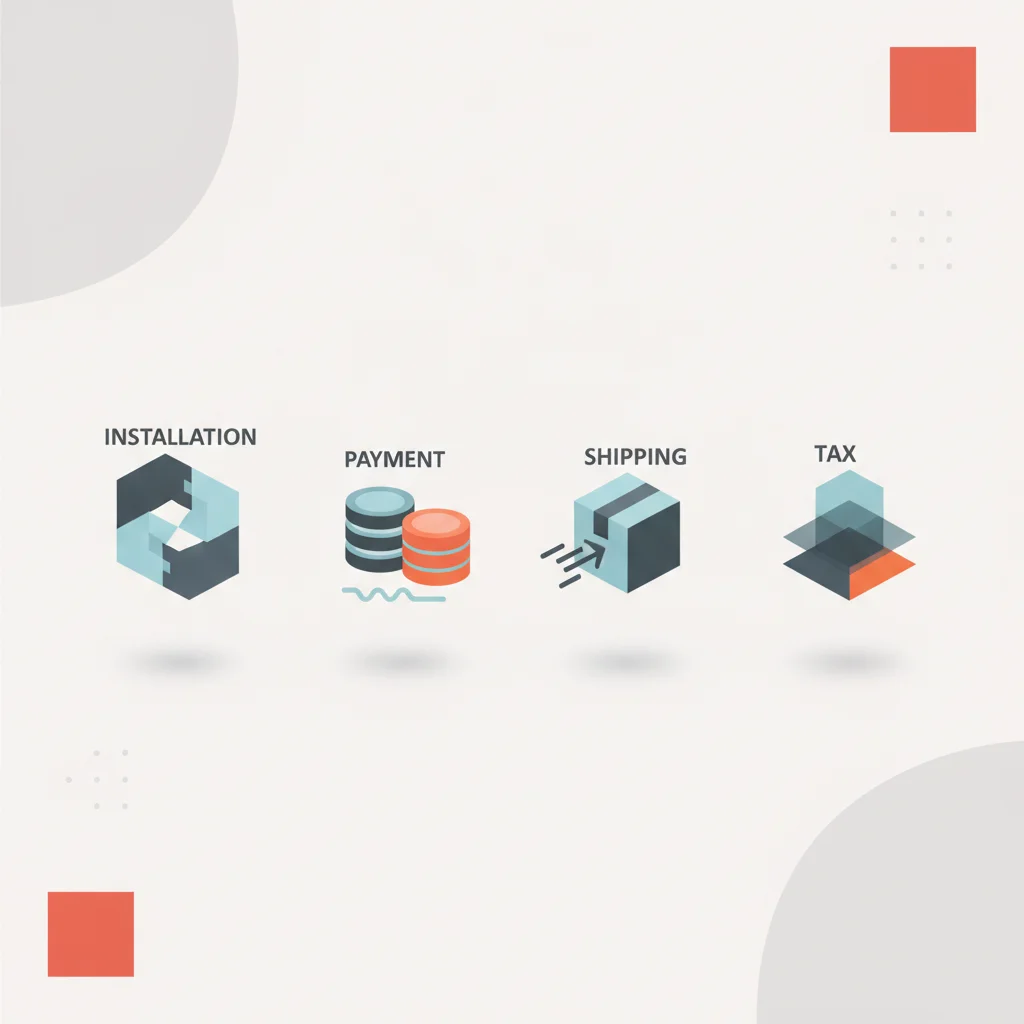
Follow these sequential technical steps to configure your e-commerce store correctly. Install and activate the core WooCommerce plugin via the WordPress dashboard or execute the WP-CLI command. Complete the setup wizard, establishing physical store location, baseline currency, and catalog profile. Configure payment processing gateways, link merchant keys, and set up secure webhook endpoints. Establish shipping zones, define shipping methods, and optionally link carrier APIs for real-time rates. Enable standard tax calculations and connect an automated tax provider for real-time compliance.Sequential WooCommerce Setup Flow
Plugin Activation
Store Onboarding
Gateway Integration
Logistics Definition
Tax Automation
Managing Inventory: Adding Your First Product
Configuring Physical vs. Digital Goods
An online store can distribute physical inventory, downloadable digital media, or a hybrid combination of both. Properly classifying your products is crucial because WooCommerce modifies its processing logic, checkout requirements, and automated customer emails based on whether an item is physical or digital.
To create your first product, navigate to Products > Add New in the WordPress administrative sidebar. This interface resembles the standard WordPress block editor but includes an advanced, specialized Product Data configuration panel below the main content area.
Within the Product Data selector, you must first define the general product category (e.g., Simple Product, Grouped Product, External/Affiliate Product, or Variable Product). Adjacent to this selector are two vital checkboxes:
Virtual: Checking this box signals that the product is intangible. When selected, WooCommerce automatically strips the shipping field requirements from the checkout flow, improving conversion rates by streamlining the payment experience for non-physical goods.
Downloadable: Checking this box indicates that purchasing the product grants access to a digital file. This triggers options where you can upload the digital assets, set download limits (e.g., restricting a user to 3 downloads), and establish download expiration windows.
For digital downloads, security is of paramount importance to prevent unauthorized file sharing and direct URI traversal attacks where non-paying users access files on your server. To secure your downloadable assets:
Navigate to WooCommerce > Settings > Products > Downloadable Products.
Set the File Download Method to Force Downloads or X-Accel-Redirect/X-Sendfile. This configuration hides your actual server file paths and forces the server to stream the files directly to authenticated users.
Ensure that your digital assets are uploaded to a secured directory (such as @@CODE0@@) protected by an @@CODE1@@ rule that blocks direct web browser access.
Setting Pricing, SKUs, and Inventory Tracking Parameters
Under the Product Data panel, the General and Inventory tabs contain the fields required to establish accurate operational, financial, and tracking data for your catalog.
In the General tab:
Regular Price: Enter the baseline retail cost of the product.
Sale Price: Input a promotional price if applicable. You can schedule promotions by defining start and end dates, allowing the platform to dynamically adjust pricing on the front end without manual intervention.
In the Inventory tab, you manage your inventory tracking parameters:
SKU (Stock Keeping Unit): This is a unique alphanumeric identifier used to track items across your warehouse and external logistics systems. Every product and variant must have a unique SKU to maintain data integrity.
Manage Stock: Check this box to enable real-time inventory tracking. If unchecked, the product is treated as infinitely available, which is suitable for digital goods but disastrous for physical stock management.
Stock Quantity: Define the precise quantity of physical inventory currently available in your warehouse.
Allow Backorders: Decide whether customers can purchase items that have dropped to a zero-stock balance. You can configure this to block backorders entirely, allow them while displaying a warning to the customer ("Available on backorder"), or allow them silently.
Low Stock Threshold: Define the inventory level at which WooCommerce will trigger an automated administrative email notification. This acts as an early warning system, prompting your procurement team to restock before an item sells out completely.
Optimizing Store Architecture and Design

Selecting a Reliable and Responsive WooCommerce Theme
An e-commerce storefront's visual design directly impacts both user conversion rates and technical performance. While complex, visually heavy themes with built-in page builders can look impressive, they often introduce significant code bloat. This bloat increases DOM size, blocks main-thread processing with excess JavaScript, and slows down Largest Contentful Paint (LCP) and Interaction to Next Paint (INP) speeds.
When evaluating themes, prioritize those built specifically for performance, clean block architecture, and full mobile responsiveness. Themes such as the official WooCommerce Storefront, Astra, or performance-focused block themes developed under the WordPress Full Site Editing (FSE) framework are highly recommended.
A modern, high-performance theme should exhibit the following technical characteristics:
Minimal Third-Party Dependencies: It should rely on native Gutenberg blocks or highly optimized, lightweight CSS grid layouts rather than heavy, legacy page builders.
Asynchronous Loading: Critical layout styles should load inline, while non-critical CSS and JS are deferred to prevent render-blocking resources from slowing down mobile browsers.
Mobile-First UX Design: Product grids, checkout screens, navigation menus, and cart drawers must be designed specifically for touch interactions and smaller viewing windows to prevent high bounce rates.
Child Theme Support: Always construct a custom child theme before executing visual modifications. Editing the parent theme files directly will result in your custom code being overwritten when the theme developer releases a security update.
Essential WooCommerce Extensions for Business Scaling
The baseline WooCommerce installation is deliberately kept lightweight to maintain performance. To scale operations, you will inevitably need to expand your store's functionality through WooCommerce Extensions. However, installing too many extensions can degrade server performance, so select high-quality plugins from trusted developers who adhere to strict coding standards.
To support scaling operations, consider incorporating these core extension categories:
Object Caching and Performance Plugins: Tools like WP Rocket or LiteSpeed Cache, coupled with a server-level Redis deployment, are essential to minimize database overhead on non-transactional pages.
Search and Filter Optimization: Heavy default database searches can slow down your site. Replacing the standard search engine with an index-based solution like Elasticsearch or a lightweight alternative like Jetpack Search improves search speed and accuracy.
SEO Management Frameworks: Deploying plugins like RankMath or Yoast SEO helps you manage structured schema markup (such as @@CODE0@@ and @@CODE1@@ schema). This schema outputs metadata that search engines use to display rich results, including current pricing, stock availability, and user reviews.
Subscription and Recurring Billing Engines: If your business model relies on recurring revenue, integrating WooCommerce Subscriptions is essential to securely manage automated renewals, payment retries, and customer account portals.
Security and Maintenance Best Practices
Routine Database Backups and Plugin Updates
Running an open-source, self-hosted application requires a disciplined backup and update routine. Because your WooCommerce database continuously ingests live transactions, order statuses, and user accounts, losing database integrity can cause catastrophic financial and reputational damage.
To maintain a secure and reliable platform, establish a strict, automated backup protocol:
Incremental Backups: Configure your backup software (such as UpdraftPlus Premium, Jetpack VaultPress, or server-level snapshots) to execute incremental database backups every hour. Unlike full daily backups, incremental backups only record database changes since the last backup, minimizing server load while ensuring you don't lose order data in a recovery scenario.
Offsite Storage: Never store backup files on the same physical server as your live site. If your server is compromised, your backups will be lost too. Instead, configure your backup tools to automatically transmit encrypted backup packages to secure external cloud storage, such as Amazon S3, Google Cloud Storage, or Backblaze B2.
Staging Environment Deployments: Never execute plugin, theme, or core WordPress updates directly on a live production website. Maintain an exact replica of your site, known as a staging environment. Before executing updates, run them in staging to identify any plugin conflicts, database migration issues, or layout breaks. Once verified, apply the updates to your production environment during low-traffic windows.
Mitigating Fraud and Securing Customer Data
E-commerce websites are frequent targets for automated brute-force attacks, carding exploits (testing stolen credit cards), and scrapers targeting customer directories. Securing your environment requires a multi-layered defensive strategy.
First, implement a robust Web Application Firewall (WAF). Services such as Cloudflare Enterprise, Sucuri, or Wordfence act as a perimeter defense, scanning incoming HTTP traffic and blocking malicious IP addresses, known exploit patterns, and automated bot networks before they reach your origin server.
To secure your platform against common attack vectors, implement these essential security practices:
Rate-Limiting on Checkout Endpoints: Prevent automated carding attacks by implementing strict rate-limiting on your checkout and cart APIs, blocking IPs that make rapid, consecutive checkout attempts.
Enforce Strong Password Policies: Use password-strength meters to force customers and administrative users to set complex credentials. Add Multi-Factor Authentication (MFA) for all administrative and shop manager accounts to prevent unauthorized access.
Secure Database Configuration: Change the default WordPress database prefix (typically @@CODE0@@) to a randomized string (e.g., @@CODE1@@) during installation. This helps defend against automated SQL injection vulnerabilities.
Strict Data Anonymization Compliance: To comply with GDPR and KVKK requirements, configure WooCommerce to automatically anonymize or delete customer personal data from old, inactive accounts and completed orders after a specified retention period. This is managed in the administrative settings under WooCommerce > Settings > Accounts & Privacy.
Frequently Asked Questions
Is WooCommerce genuinely free to use?
Yes, the core WooCommerce plugin is free and open-source software. However, running a secure online store requires recurring investments in high-performance web hosting, domain registration, SSL certificates, payment processing fees, and premium functional extensions.
How does WooCommerce compare to hosted solutions like Shopify?
WooCommerce is a self-hosted platform offering complete database ownership, unlimited customization, and zero variable platform transaction fees. Shopify is a fully hosted SaaS platform that simplifies setup but imposes strict platform transaction fees, limited database access, and locked code structures.
Can WooCommerce handle high-volume enterprise traffic?
Yes, provided it is deployed on optimized cloud infrastructure. Utilizing High-Performance Order Storage (HPOS), persistent object caching (Redis), a fast database engine, and a Web Application Firewall enables WooCommerce to easily scale to thousands of transactions per minute.
What is High-Performance Order Storage (HPOS) and why is it important?
HPOS is a modern database architecture that moves transactional order data into its own dedicated custom database tables. This separates order processing from standard content tables, dramatically improving query speeds and preventing database performance bottlenecks.
How do I prevent credit card fraud on my WooCommerce store?
Mitigate fraud by integrating secure payment gateways that use tokenized iframe structures, enforcing rate-limiting on your checkout endpoints to block bot attacks, and using a reputable Web Application Firewall (WAF) to filter malicious network traffic.
Do I need a physical merchant account to use WooCommerce?
You do not need a traditional physical merchant account. You can connect modern, secure payment gateways like Stripe, PayPal, or Adyen, which act as your online merchant account, processing card transactions and depositing funds directly into your business bank account.
Why are my WooCommerce transactional emails going to spam?
This usually occurs when emails are sent directly from your web host's server IP, which may be blacklisted. To fix this, integrate a dedicated transactional email service (like Mailgun or SendGrid) and authorize your domain with valid SPF, DKIM, and DMARC TXT records.
How often should I execute plugin and database updates?
Security updates should be reviewed and applied weekly, while minor feature updates can be handled monthly. Always test updates in a secure staging environment first to verify compatibility and prevent unexpected downtime on your live production store.